 Azure for StartupsAzure for Startups
Just follow the 14 illustrated steps below - about 5 minutes and you're done. Safe and easy, entirely on your own screen.
You always act on your own device and keep full control of your account.
Follow along with each screenshot
Open the link below, scroll to "New to Microsoft for Startups?" and click Apply now.
Open the sign-up page · portal.startups.microsoft.com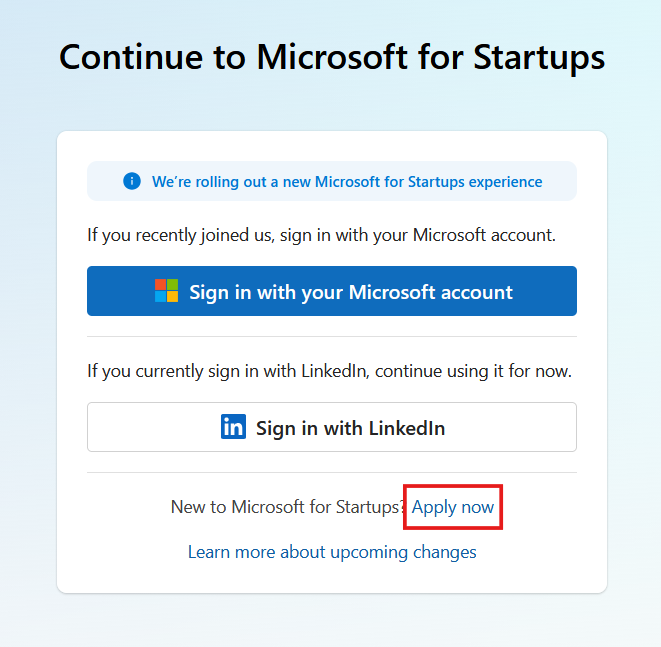
On the Sign in screen, click Create one! next to "No account?"
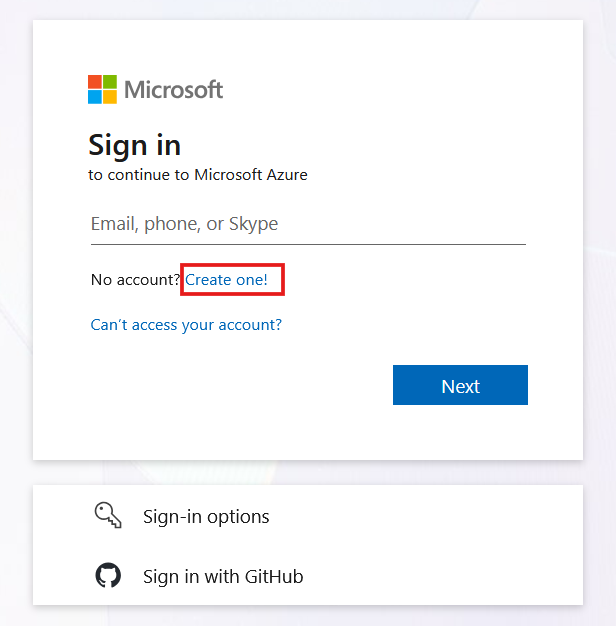
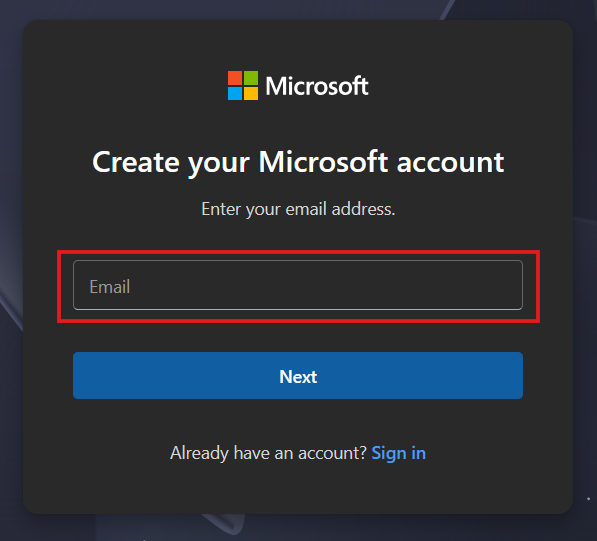
Type the email you want to use (Gmail is fine), then click Next.
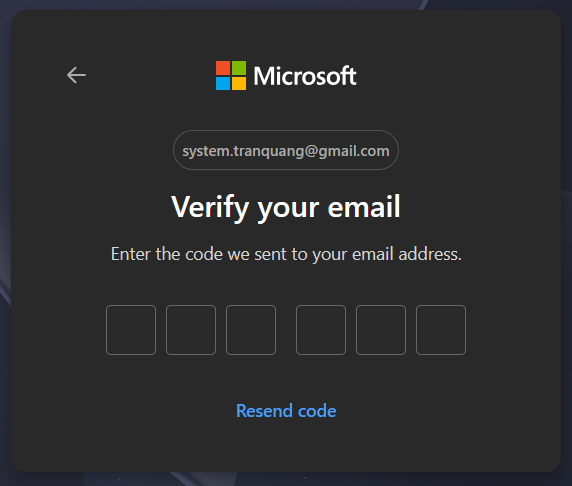
Open your inbox, copy the 6-digit code from Microsoft and type it in. Don't see it? Click Resend code.
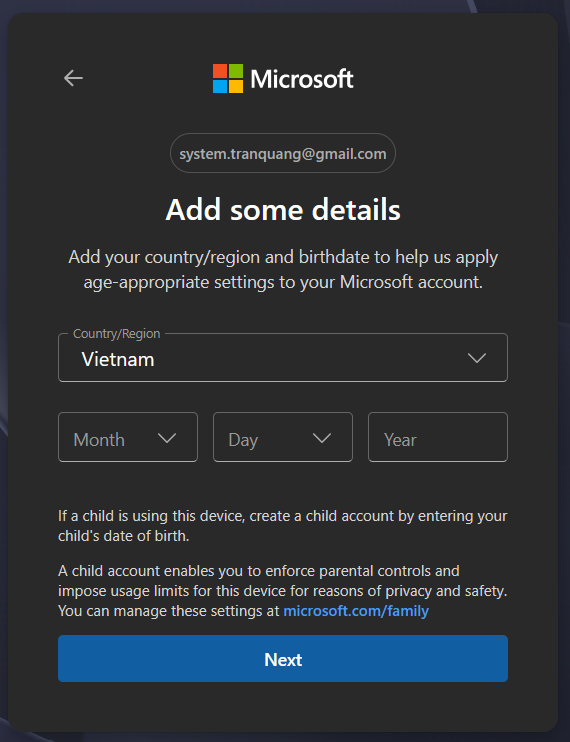
Set your Country/Region, pick your birth Month / Day / Year, then click Next.
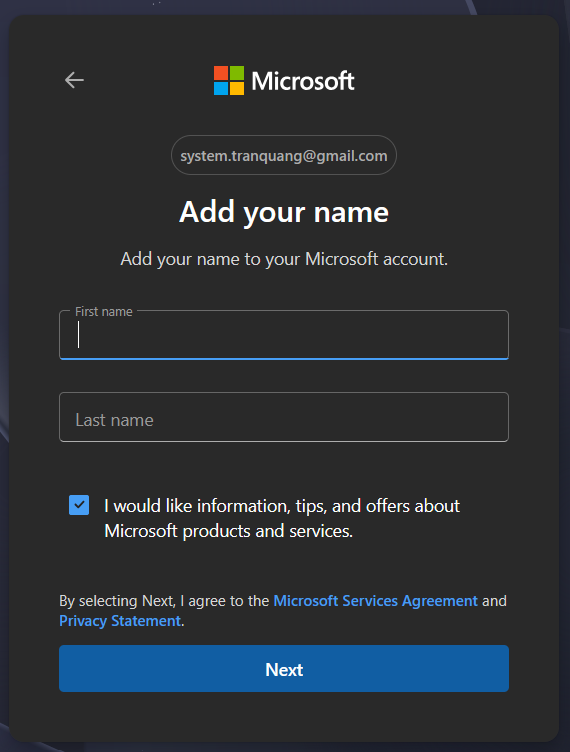
Fill in First name and Last name, then click Next.
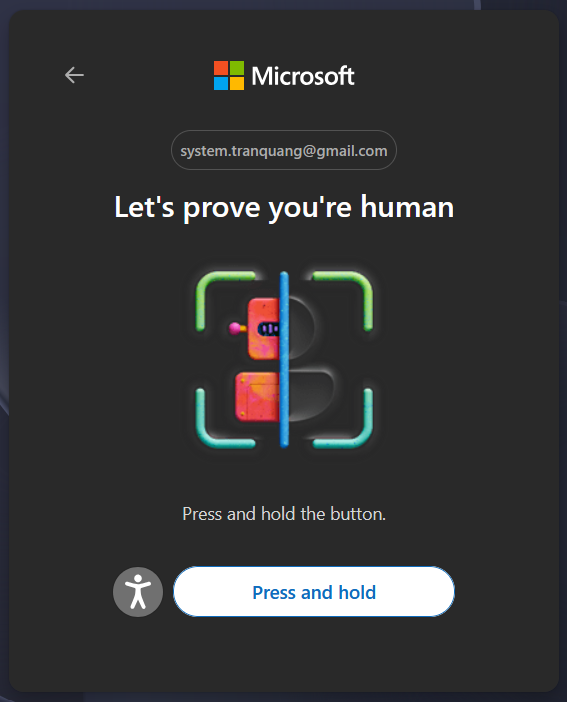
Press and hold the button until the check passes.
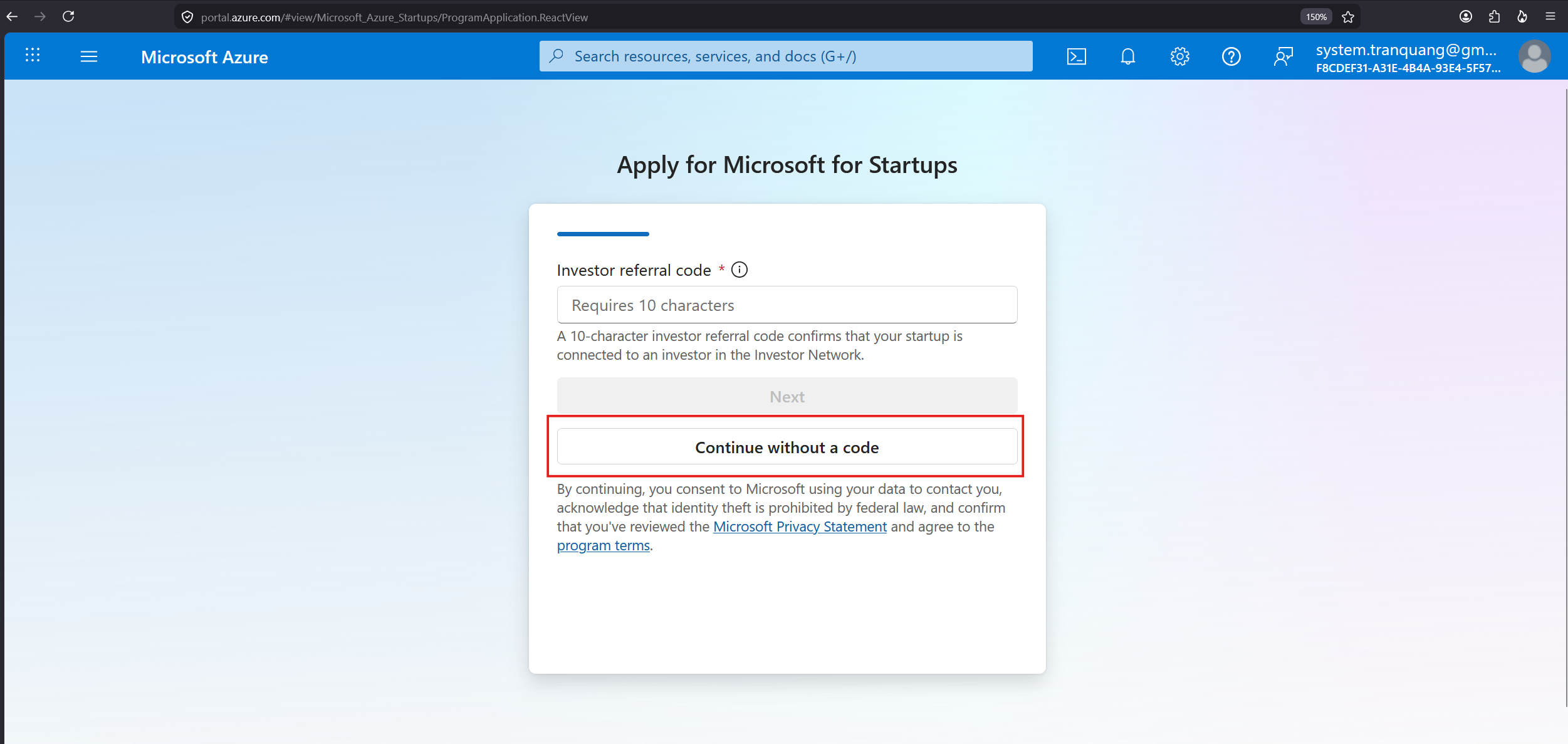
Leave the Investor referral code empty and click Continue without a code.
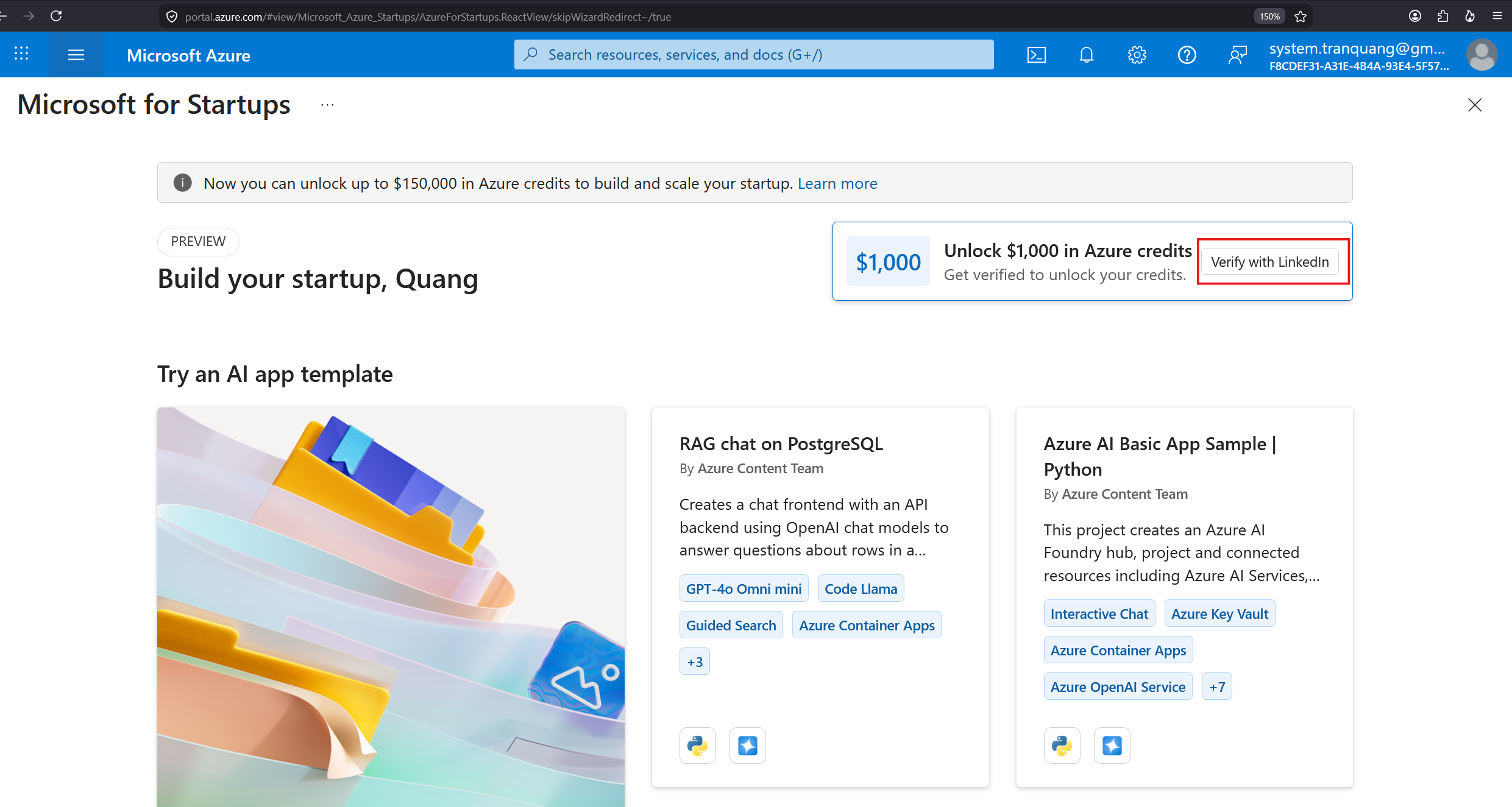
Your account is created. To unlock extra credits, click Verify with LinkedIn.
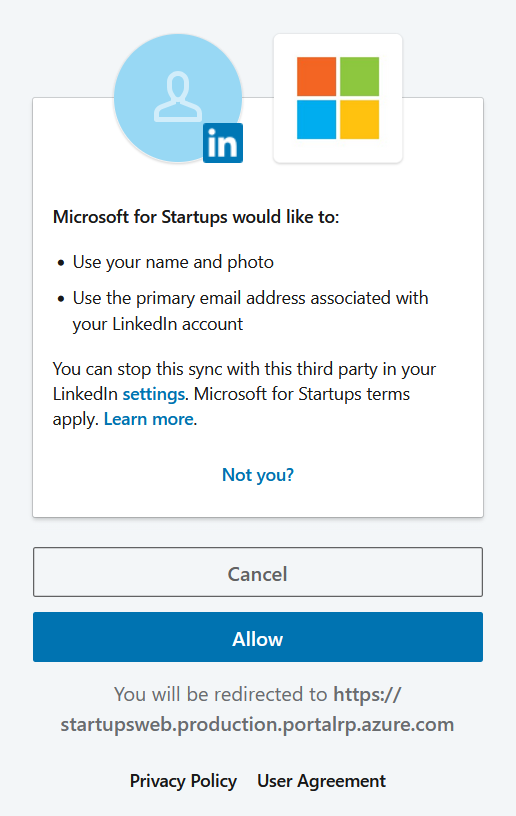
Sign in with your own LinkedIn and click Allow. It only reads your name + LinkedIn email.
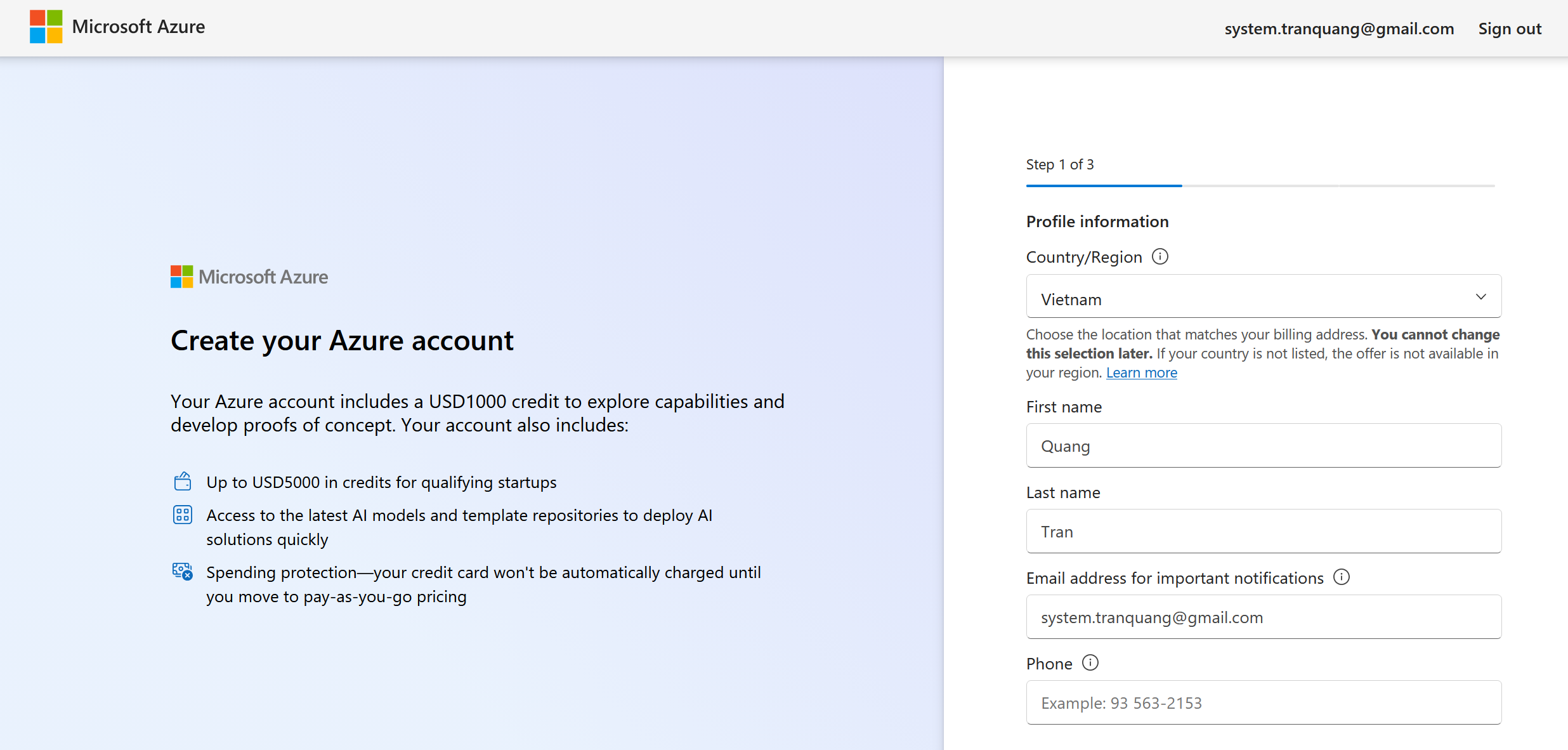
Fill in Country/Region, First name, Last name, Email and Phone, then continue.
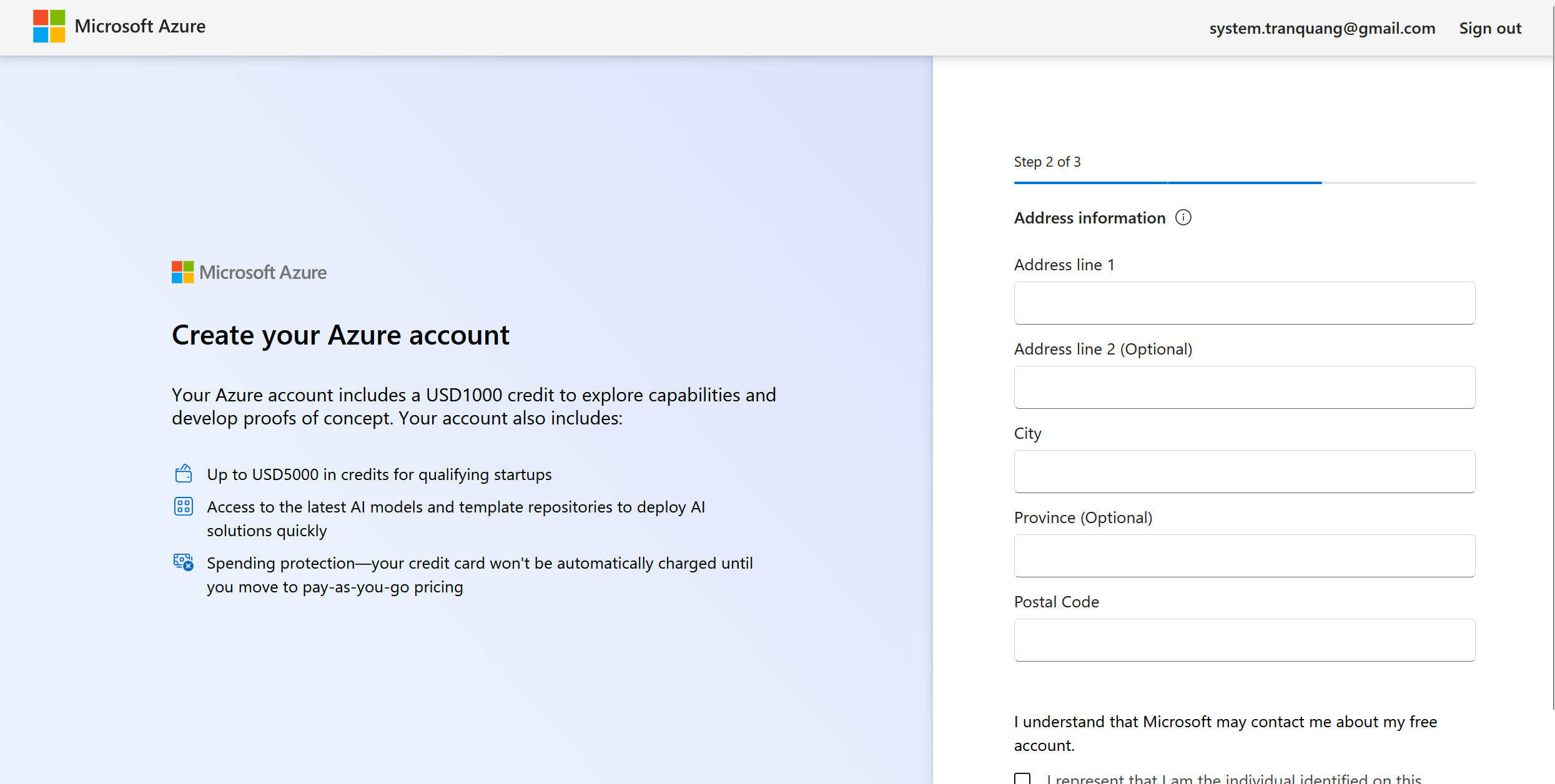
Enter your address (Address, City, Province, Postal Code), tick the agreement box, then continue.
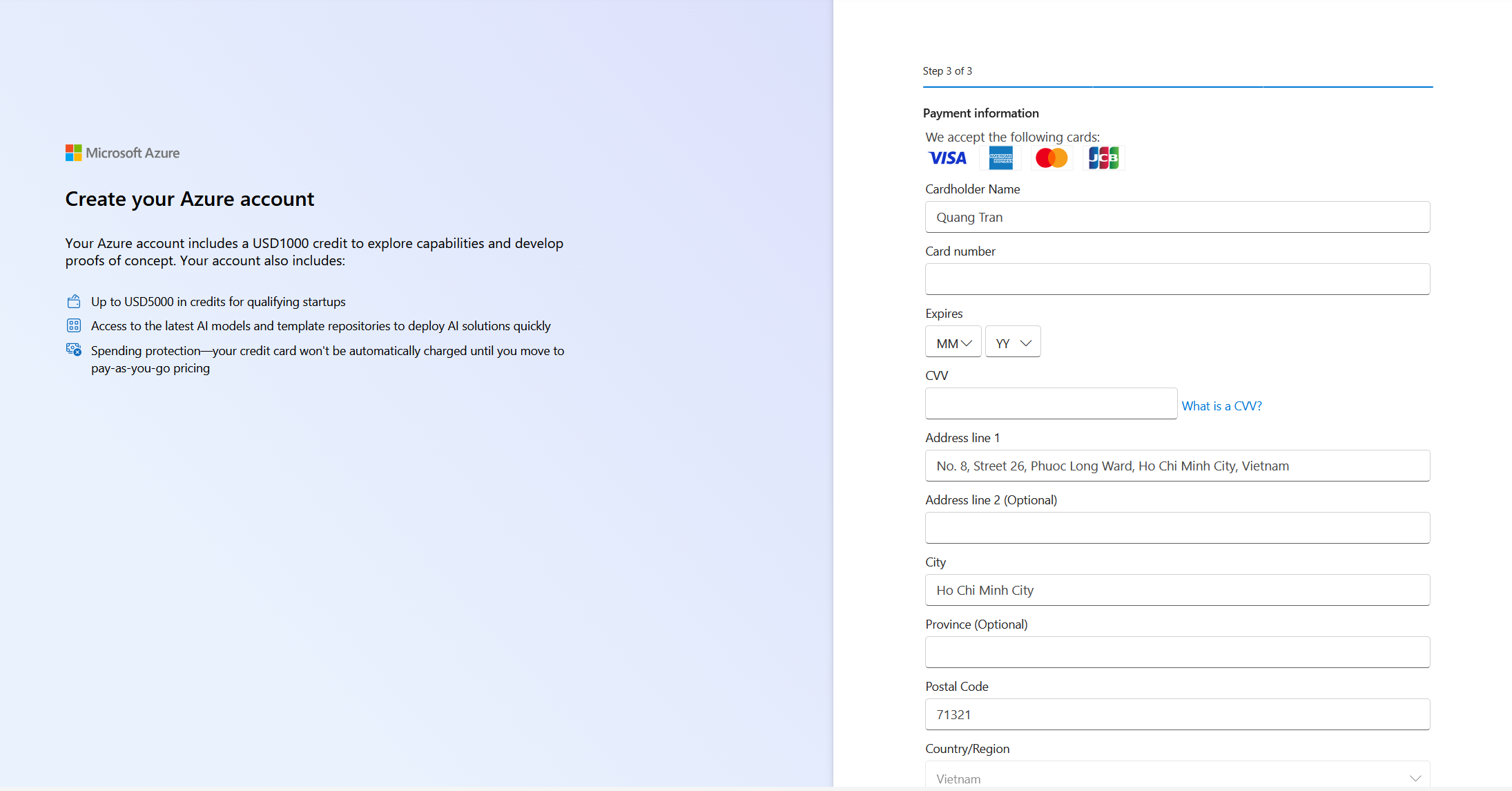
Enter your card to verify identity. Microsoft states the card won't be automatically charged until you choose pay-as-you-go.
When you see "$1,000 Azure credits remaining" on the Build your startup page, you're all set. Nothing more to do.
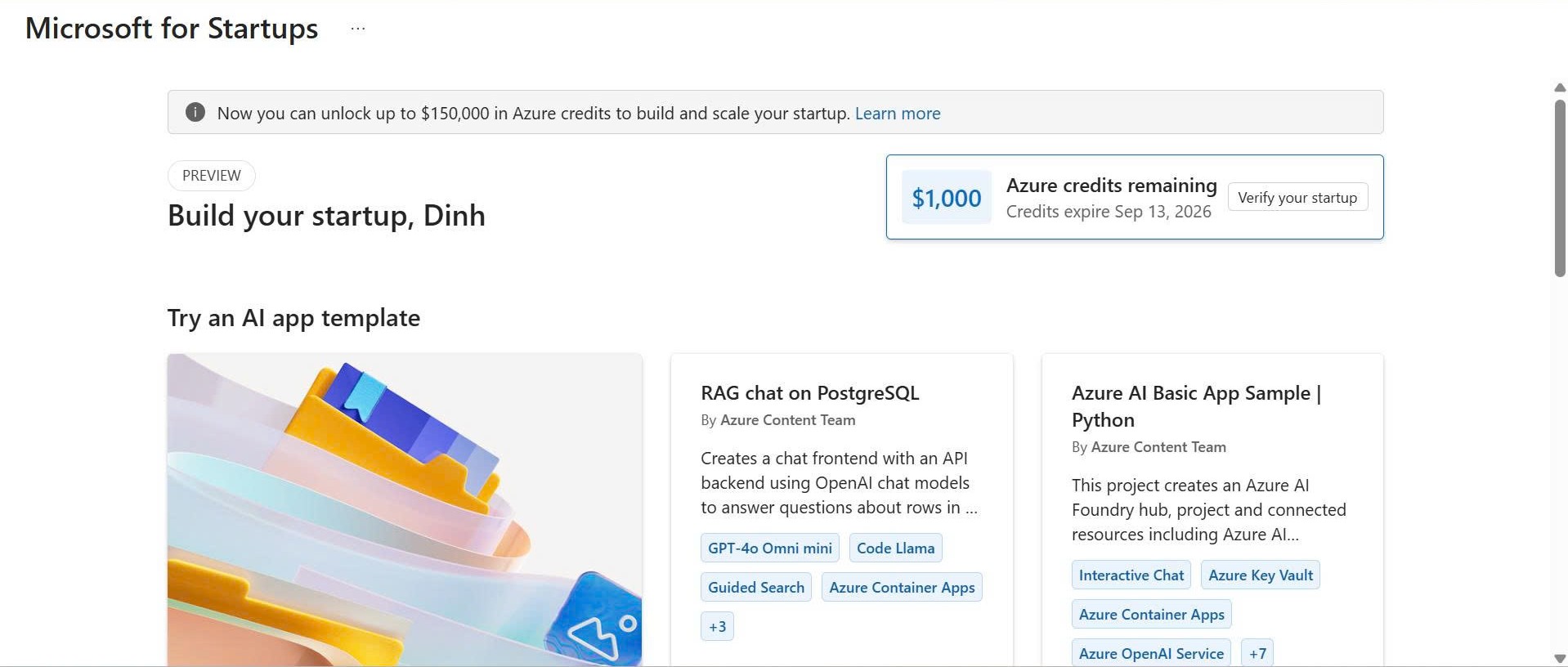
Finishing the 14 steps means the Azure for Startups account is ready, with $1,000 Azure credit unlocked.